Free Small Business Inventory Spreadsheet — Excel Download
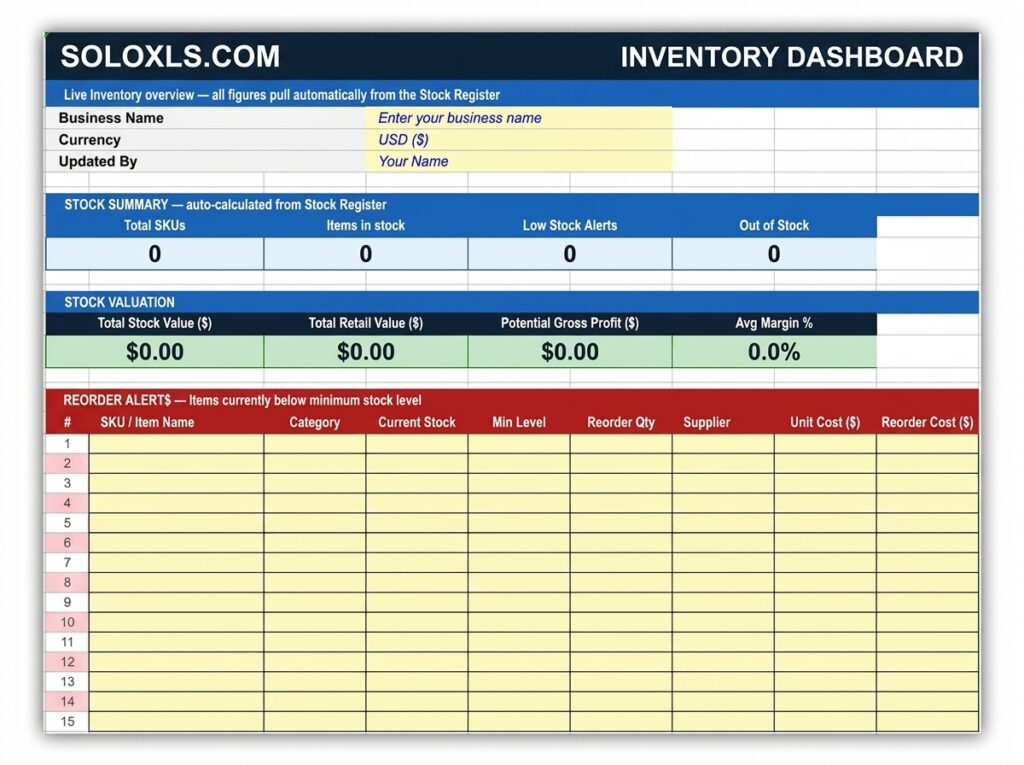
Six connected sheets — stock register, movement log, reorder alerts, supplier directory, and purchase order tracking. Know what you have, what you need, and who to call.
| 👤 By SoloXLS Team | 📅 April 25, 2026 | ⏱ 8 min read |

|
Free Download Stock Inventory Spreadsheet (.xlsx) — 6 Sheets 100 SKUs · 500 movements · Auto reorder alerts · Works in Excel and Google Sheets |
Download Free → |
Running out of stock costs sales. Carrying too much ties up cash. Both problems share the same root cause — no clear, real-time picture of what’s actually on the shelf.
This free inventory spreadsheet gives you that picture across six connected sheets — from the master product list through to purchase order tracking.
What’s Inside
| Inventory Dashboard | Live KPIs — total SKUs, low stock alerts, out of stock, total stock value |
| Stock Register | 100-row master product list with auto status: In Stock / Reorder / Out of Stock |
| Stock Movement Log | 500-row log of every movement — IN, OUT, ADJUST, WASTE, RETURN |
| Supplier Directory | 30 supplier records with lead times, minimum orders, and payment terms |
| Purchase Order Log | 200-row PO tracker with status, total spend, and outstanding order value |
| How To Use Guide | Step-by-step setup instructions for every sheet |
Stock Status System
| ✔ In Stock | Current stock is above your minimum level — no action needed |
| ⚠ Reorder | Stock has hit or dropped below minimum — place an order now |
| ✖ Out of Stock | Current stock is zero — item unavailable, urgent reorder required |
How to Set Up in 5 Steps
1. Add every product to the Stock Register — name, category, supplier, unit cost, selling price, and current stock quantity.
2. Set the minimum stock level for every item — the quantity at which you need to reorder, not the quantity at which you run out.
3. Add your suppliers to the Supplier Directory with contact details, lead time, and minimum order value.
4. Check the Dashboard — any items showing Reorder or Out of Stock need immediate purchase orders.
5. Log every stock movement and purchase order going forward. Update the Stock Register after each delivery.
💡 Pro Tip
Set your minimum stock level at lead time demand plus a safety buffer. If a product sells 10 units per week and your supplier takes 5 days to deliver, your minimum level should be at least 7–8 units — not zero.
Download the Free Inventory Spreadsheet
All 6 sheets pre-built with automatic stock status and reorder alerts. Free, no sign-up required.